 JG McQuarrie |
September 16, 2026
JG McQuarrie |
September 16, 2026


Karaoke has been a mainstay of people going out and enjoying themselves for decades now. Whether it's with friends, work colleagues, or family, belting out your favorite songs at the top of your lungs never seems to lose its appeal.
But what happens if you can't find your favorite songs on the playlist? What if your one moment to shine is somehow denied to you because nobody else thought to have it at karaoke?
Fear not, for the solution is at hand!
What Is a Karaoke Version of a Song?
You probably already know the answer to this, but let's set it out, just to be clear.
A karaoke version of a song is an instrumental recording that removes the lead vocals so users can sing the melody themselves. When displayed on a screen, it pairs the audio with time-synced lyrics that change color to guide the singer’s timing, and it typically includes background vocals.
In other words, it's the song you know and love, just with the main vocals removed to be replaced by your own dulcet voice.
Why Use CrumplePop for Karaoke Creation?
CrumplePop is well known for creating some of the best audio restoration software on the planet. But CrumplePop exists to do more than just save your recordings from the horrors of echo or traffic noise, and their SoundApp is a powerful tool that can also assist in the creation of karaoke songs as well.
Simplicity
Ease of use is critical when it comes to any piece of software, and CrumplePop has always excelled at this particular aspect. No matter how powerful the software, you're never going to struggle to understand what's going on. And SoundApp, following on from CrumplePop's audio restoration plugins, follows this approach - there's no learning curve; you just use it!
Cost
The entire CrumplePop suite is ridiculously cheap at a cost of just $25.00 for a monthly subscription ($14.58 if paid annually) or $345 for a perpetual license. That gets you all CrumplePop's audio restoration plugins to ensure whatever you record sounds fantastic, as well as SoundApp. There's value for money, and then there's CrumplePop!
Effectiveness
CrumplePop simply works. No faffing around, no needing to have a complex understanding to get the best results, and no need for technical qualifications. If you want to produce karaoke tracks quickly, easily, and effectively, CrumplePop has to be the answer.
Processing Power
One of the great things about SoundApp is that it doesn't require a great deal of CPU processing power to work. Some older computers will be able to cope, and SoundApp is very light on CPU usage - but does require a modern GPU. Of course, the more powerful your computer is, the quicker the results will be, but even older machines will be able to produce high-quality karaoke tracks in a snap.
Step-by-Step: How to Make a Karaoke Version of a Song with CrumplePop

Creating karaoke songs with CrumplePop really couldn't be easier.
Firstly, launch the standalone SoundApp. SoundApp supports all the standard audio formats, including .mp3, .wav, .aiff and .flac - as well as most video formats if working with a video file.
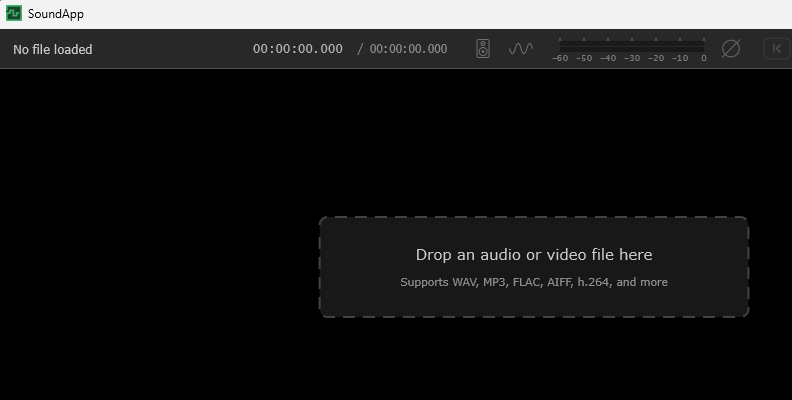
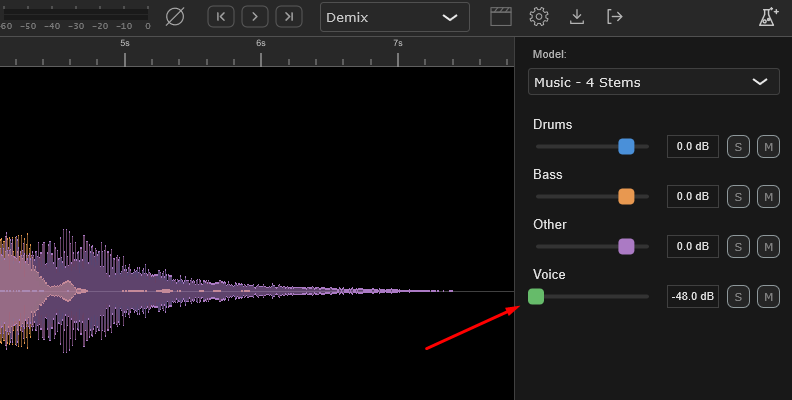
Drag and drop the song you want to create a karaoke version of into the main window. From the "Models" menu on the right-hand side, ensure that the "Demix" option is selected from the top menu, and select "Music - 4 Stems". SoundApp will then start processing your song.
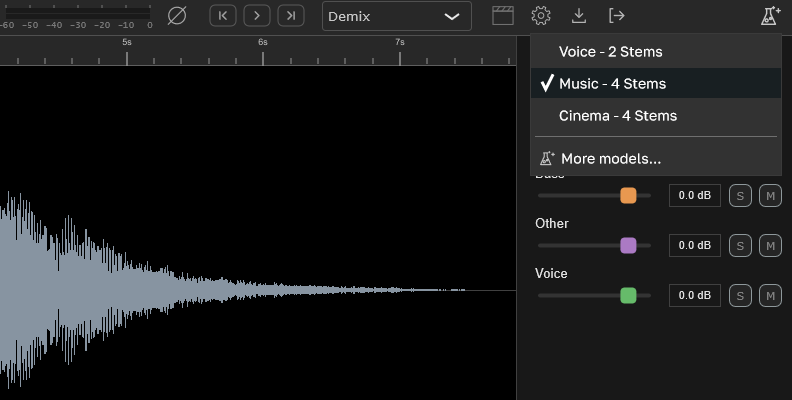
Stems are simply different parts of the song, as you can see from the labels there. Bass, Drums, Vocals, and Other (any other instruments) are separated into different components, or "stems".
Each stem is represented by a different color - blue for drums, orange for bass, purple for other, and green for voice. You can see these in the main window where the song was dropped.
Move the green slider all the way to the left. You will see the green vanish from the main window because the vocals have now been entirely removed. It's really that simple - just adjust the green slider and the vocals have gone!
If you only want to remove vocals, select "Voice - 2 Stems" and get an even higher quality separation.
Click the Export button. Here you have two options - to export some or all of the stems individually or to mixdown. In this case, you want to choose mixdown, and once you've done so, you can choose the format you want to export the file in: .wav, .flac, or .mp3 -if you export video, the format will remain the same as imported.
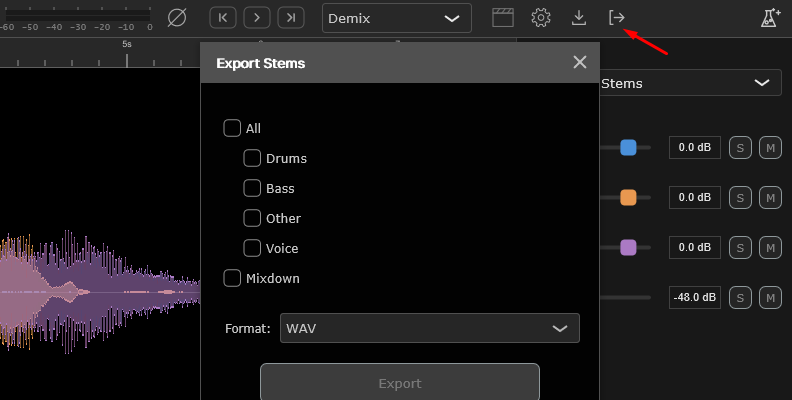
Click Export, then choose the location you want the audio file saved to.
And that's it! With just a few clicks, you can create your own karaoke songs.
CrumplePop vs Other Karaoke Creation Methods
While CrumplePop's SoundApp is a fantastic way to create karaoke songs, there are other methods as well.
EaseUS

EaseUS is an online vocal remover and karaoke maker and features a simple online interface that can be used in any browser. It's a swift piece of software and usually processes songs in less than a minute (though this will vary depending on how long the song is, of course). And because it's online, you can use it on the go, regardless of whether you have your own hardware with you or not.
The software supports .mp3, .flac and .wav, so you shouldn't struggle with file formats. The native AI processes the results smoothly, and the results are good, with vocals being removed cleanly, leaving behind a minimum of artifacts.
EaseUS has a free tier which anyone can access or a paid tier which has improved AI processing for a cleaner result at $14.95 per month. The free trial lets you upload three files a day, while the paid tier will give you an unlimited amount of uploads and downloads.
There's not much in the way of customization options on the free tier, though - either you're happy with the results, or you're not. If you're looking to fine-tune them, you're out of luck.
As a quick, simple online karaoke maker, EaseUS is a good place to start.
CapCut

Although it's maybe not the best-known editor, CapCut is a video editor that can be used to create karaoke tracks. You load in the video or audio file you want to turn into a karaoke song, then you can choose "Isolate Vocals" to remove the vocals from the track.
The results can be impressive, and CapCut contains the ability to generate lyrics as well, which is handy if you want to create karaoke videos as well as the instrumental track.
Using CapCut isn't as intuitive as something like CrumplePop's SoundApp, and you need to learn a few extra steps in order to get the vocals removed from your track or to get the best results from the software.
CapCut has a free version which can be downloaded from their website for both Mac and Windows, and their paid-for standard tier is $19.99 per month, which also allows you to use their mobile app and web interface.
Though it's not the easiest karaoke maker software on the market, CapCut can deliver results.
Vocal Remover and Isolation
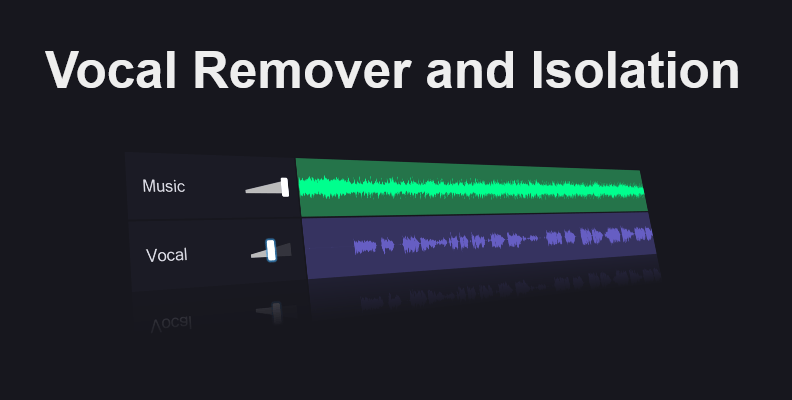
Vocal Remover and Isolation is another online tool that makes removing vocals to create a karaoke song simple and quick. It's browser-based and, like EaseUS, is simple to use - just locate the track you want to use on your hard drive, upload your song, and the site will do the rest.
The song is split into two - music and vocals - and you can export the results are either just the music, just the vocals, or both of them combined (the latter is a slightly odd option, given that "music and vocals combined" is what the song is in the first place but it will let you reduce the volume of the vocals as well as completely eliminating them).
Hopefully you'll want to export your file as an .mp3 because there are no other options available in terms of file formats. And there aren't any other options to adjust the sound - the software removes vocals and hopes you'll be happy with that.
On the plus side, the software is free to use- there is an option to donate if you so wish - and will also identify the key and BPM of the track you've uploaded, should you require that information.
While not the best solution in the world, Vocal Remover is a quick, simple solution when you need a karaoke track with a minimum of fuss.
Final Words

Karaoke songs are a staple of pop culture now. But not every song will be available as a karaoke version, so it's no surprise that there has been a big upsurge in software that can create an audio track version of whatever you want to sing.
So whether it's a vintage classic or a new pop standard, you can now create as many karaoke tracks as you want and sing to your heart's content. Just warn the neighbors!
FAQ
Can CrumplePop Completely Remove Vocals?

Yes, CrumplePop can completely remove vocals, but there is a caveat. The more complex a song is, the harder it is for any software to completely remove vocals. If the track you want to create is, for example, just an acoustic guitar and vocal track, it's easy for software to separate the two.
However, if there are dozens of instruments, it can prove trickier for the software to completely remove the vocals. This is true no matter what karaoke maker you are using, when there's a very dense or complex amount of instrumentation, removing a vocal completely becomes harder, and sometimes "artifacts" can get left behind. When this is the case, we suggest using SoundApp's "Voice - 2 Stems" for higher quality separation.
This varies greatly between songs because different songs are recorded and produced in completely different ways. So if you have an electronic track that has a lot of complex but low-frequency backing, the software might be able to remove vocals from it because they're in a completely different frequency range. Conversely, you could have a fairly straightforward rock song where guitars and vocals are in a similar frequency range, and the software would find that more challenging.
In the end, the best way to find out is to experiment and see what works best for you.
What Audio Formats Work Best?

With any process like this, the higher the quality of the original track, the better the end results are going to be. So if you are able to use a lossless format like .flac or .wav, the results will be better. Lossless means that there is no compression on the track, so the end quality is higher.
Saying that, good quality MP3's can work well too. Any high-quality MP3 (anything around 320kbps) should deliver results that are nearly as good. However, because MP3 is a lossy format - that is, it is compressed - the quality will never be quite as high as with a lossless format.
MP3's are much smaller than .flac or .wav files, though, which makes them convenient for storage or being able to send over the internet. So you need to consider balancing the quality of the track that you produce against the convenience of a smaller file size.
It's also worth stating that if you are using commercial music, any rights belong to the copyright holder. Producing karaoke tracks for use at home isn't likely to get you into trouble, but if you wanted to use the karaoke tracks you've produced in a commercial venue like a bar, you'd need to ensure that the venue's entertainment license will cover the use of the song.